Building a Bitcoin Node with Umbrel
─=≡Σ( つ₿ ω ₿)つThe picture below shows what it looks like once set up:
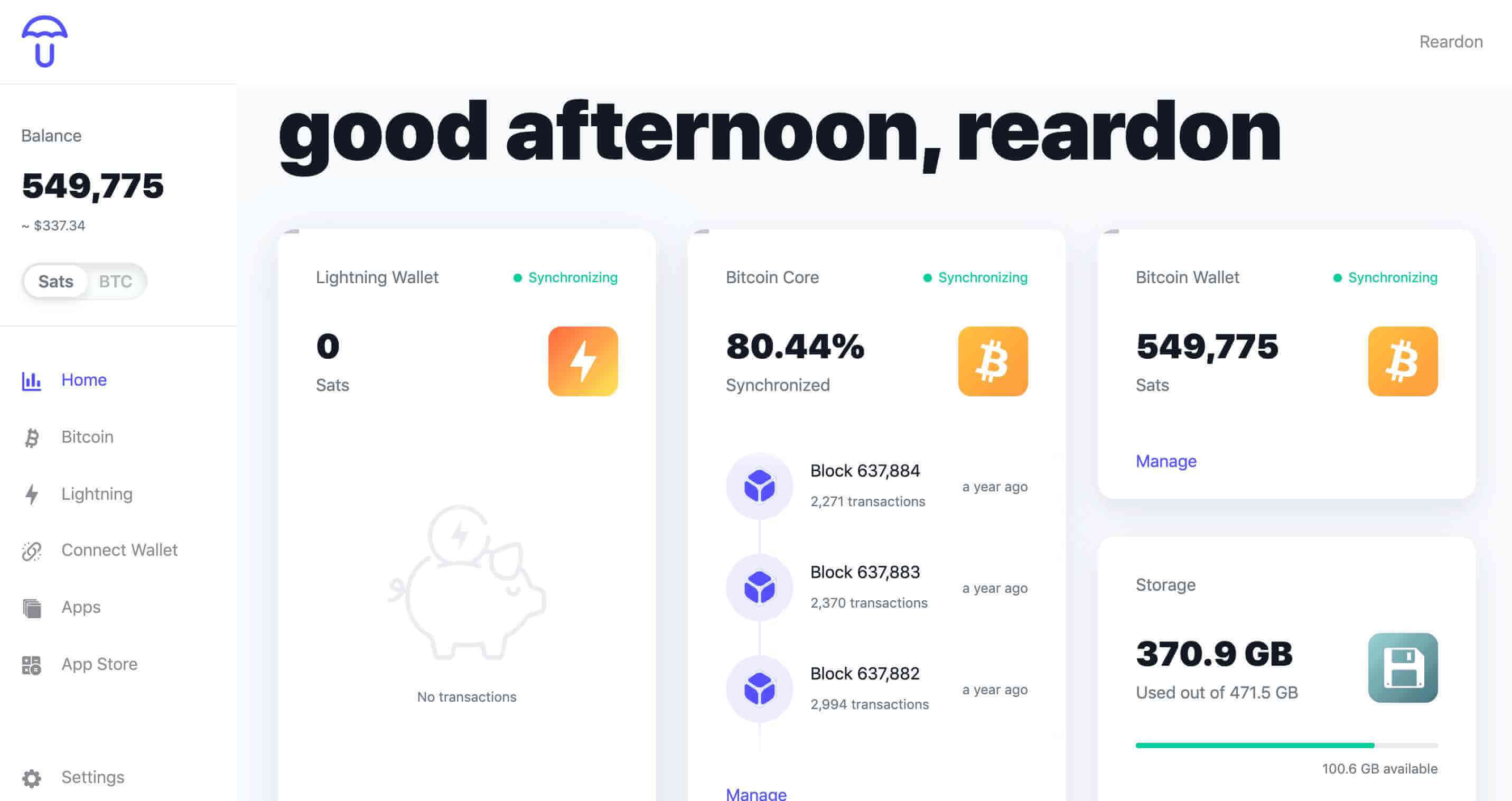
Note: There are many ways to build a Bitcoin node. This tutorial uses the Raspberry Pi + Umbrel approach, which has no technical barrier whatsoever. This approach has many advantages, including being sufficiently independent, energy-saving, stable, and secure, with complete self-control of your data and a beautiful interface (a visual interface). It is also extremely fun to tinker with: Umbrel provides a Bitcoin app store offering all kinds of apps such as the Lightning Network and blockchain explorers, greatly lowering the barrier for ordinary users to enter the Bitcoin ecosystem. I believe that after exploring it for a while, you too will deeply appreciate just how powerful Umbrel is!
Here is another picture:
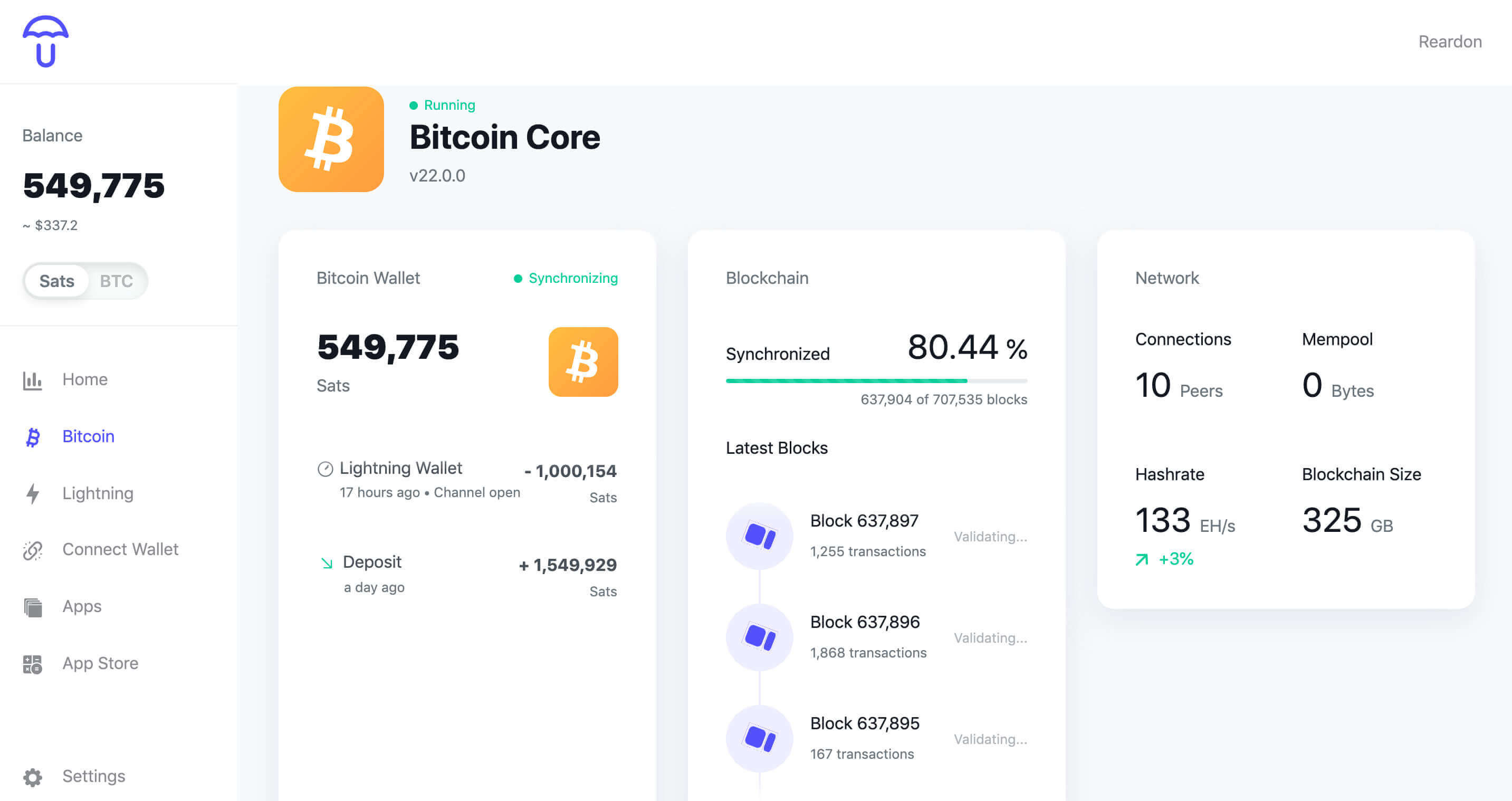
Once set up, it supports routine operations such as transfers and receiving payments, as well as viewing a whole range of information: your Bitcoin balance, transfer records, block height, the current total network hashrate, and how much hard drive space the full node occupies. For more features, please explore on your own!
Alright, let’s officially begin the tutorial:
Building a Bitcoin full node with Umbrel requires the following steps:
- Prepare/purchase the required equipment;
- Wait for delivery;
- Get everything ready;
- Download Umbrel and Balena Etcher;
- Install/write Umbrel onto the microSD card;
- Connect the equipment;
- Done;
The detailed steps follow:
1. Prepare/purchase the required equipment 👀
If you are in mainland China, all of the following equipment can be found on Taobao. Please choose shops with good reviews and relatively high transaction volumes, and prefer Tmall stores where possible. If you are abroad, just buy from Amazon:
- A Raspberry Pi (model 4B) (with a power supply — for the power supply it is strongly recommended to choose the official version); buy on Taobao in China, or Amazon abroad;
- A Raspberry Pi case — note that it must match your Raspberry Pi model (heatsinks for the Raspberry Pi are generally included);
- A 1 TB solid-state drive;
- An enclosure for the solid-state drive;
- A microSD card of 16 GB capacity or more;
- A microSD card reader;
- An Ethernet cable;
- A computer — both Windows and Apple computers are fine;
2. Wait for delivery
After ordering the equipment above, just wait patiently, waiting to bring the items home one by one from the delivery courier. While you wait, you can pass the time with the following:
- Read: The Bitcoin Whitepaper
 | Download
 - Follow me: Twitter || Douban ;
- Read the articles about Bitcoin that I have written;
- Follow: Michael Saylor and Andreas M. Antonopoulos;
- Sleep 💤
3. Get everything ready
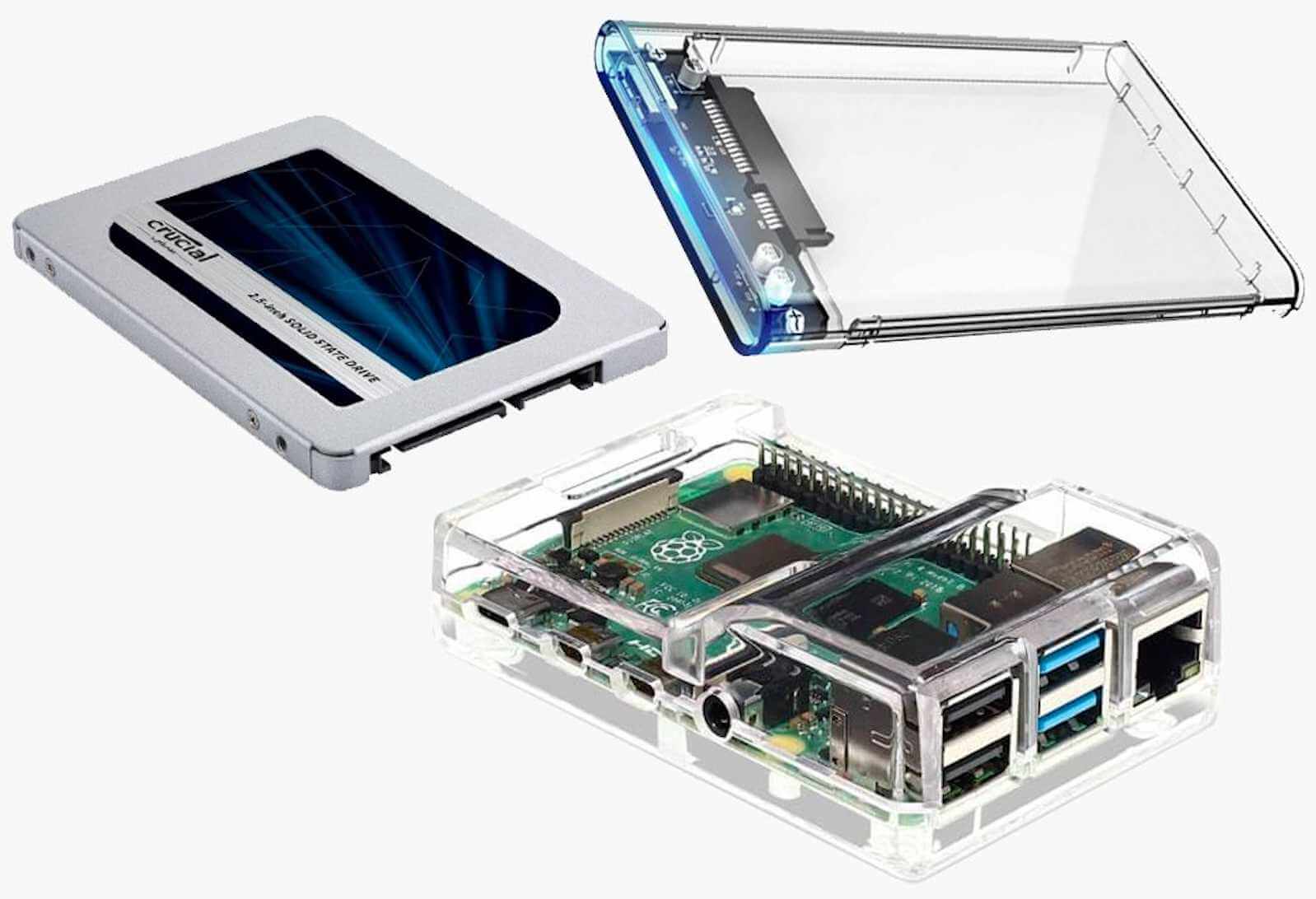
Once you have all of the equipment in hand, you can start building the full node:
- First put the case on the Raspberry Pi and attach the heatsinks (this is optional — it is fine without heatsinks too), then tighten the screws;
- Insert the microSD card into the card reader, then plug it into the computer;
4. Download Umbrel and Balena Etcher
Download Umbrel and Balena Etcher respectively.
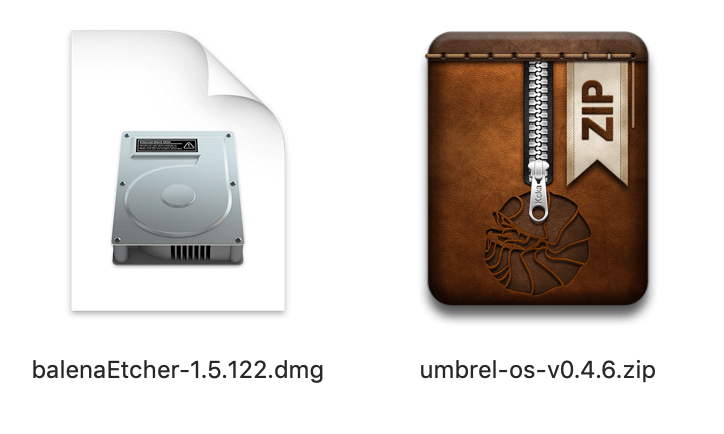
After downloading, install Balena Etcher.
Note: The picture above shows the versions I used. After clicking the links above, you can download the latest versions directly; the method of use is the same.
5. Install/write Umbrel onto the microSD card
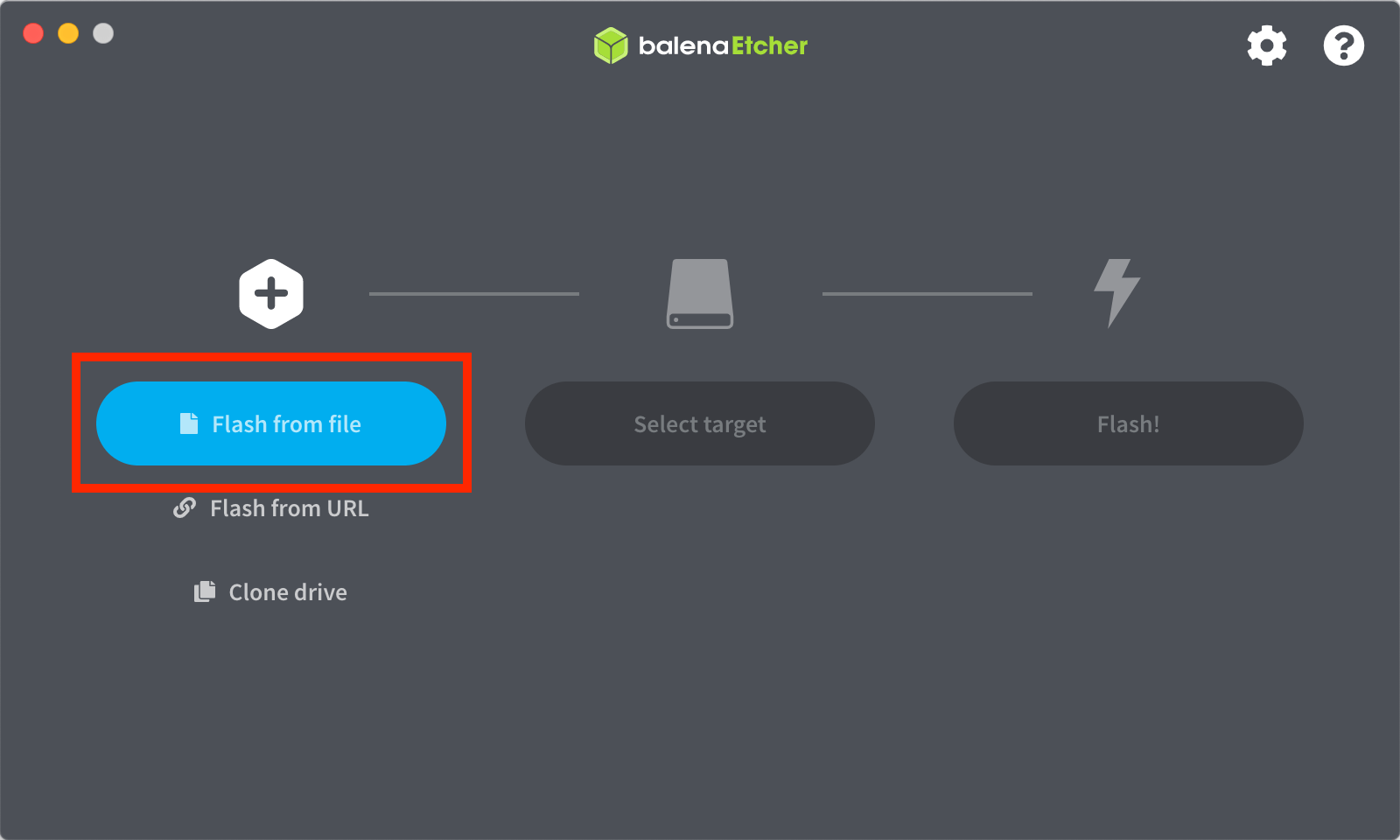
In just three steps, you can write Umbrel onto the card with Balena Etcher:
- Open Balena Etcher; as shown in the picture below, select Flash from file, then choose the Umbrel-os-xxx.zip file you have downloaded;
- Click Select target and choose the microSD card device that is plugged into the computer;
- Click Flash. (The installation/writing process takes several minutes.)
Once installation/writing is complete, you can remove the microSD card from the card reader.
6. Connect the equipment
Alright — now let’s connect all the equipment together!
- Correctly insert the microSD card into the Raspberry Pi’s microSD card slot;
- Place the solid-state drive into its enclosure, then connect it to the Raspberry Pi via a USB data cable;
- Connect the Raspberry Pi to the router with the Ethernet cable;
- Connect the power cable to the Raspberry Pi;
- Power on! ⚡⚡⚡
7. Done
Now take a breather: use the restroom, eat an orange, and after 5 to 10 minutes, on a computer or mobile device (the device must be on the same network as the Raspberry Pi), enter and visit in the browser: http://umbrel.local/ — and the gate to a new world opens before you 😃😃😃
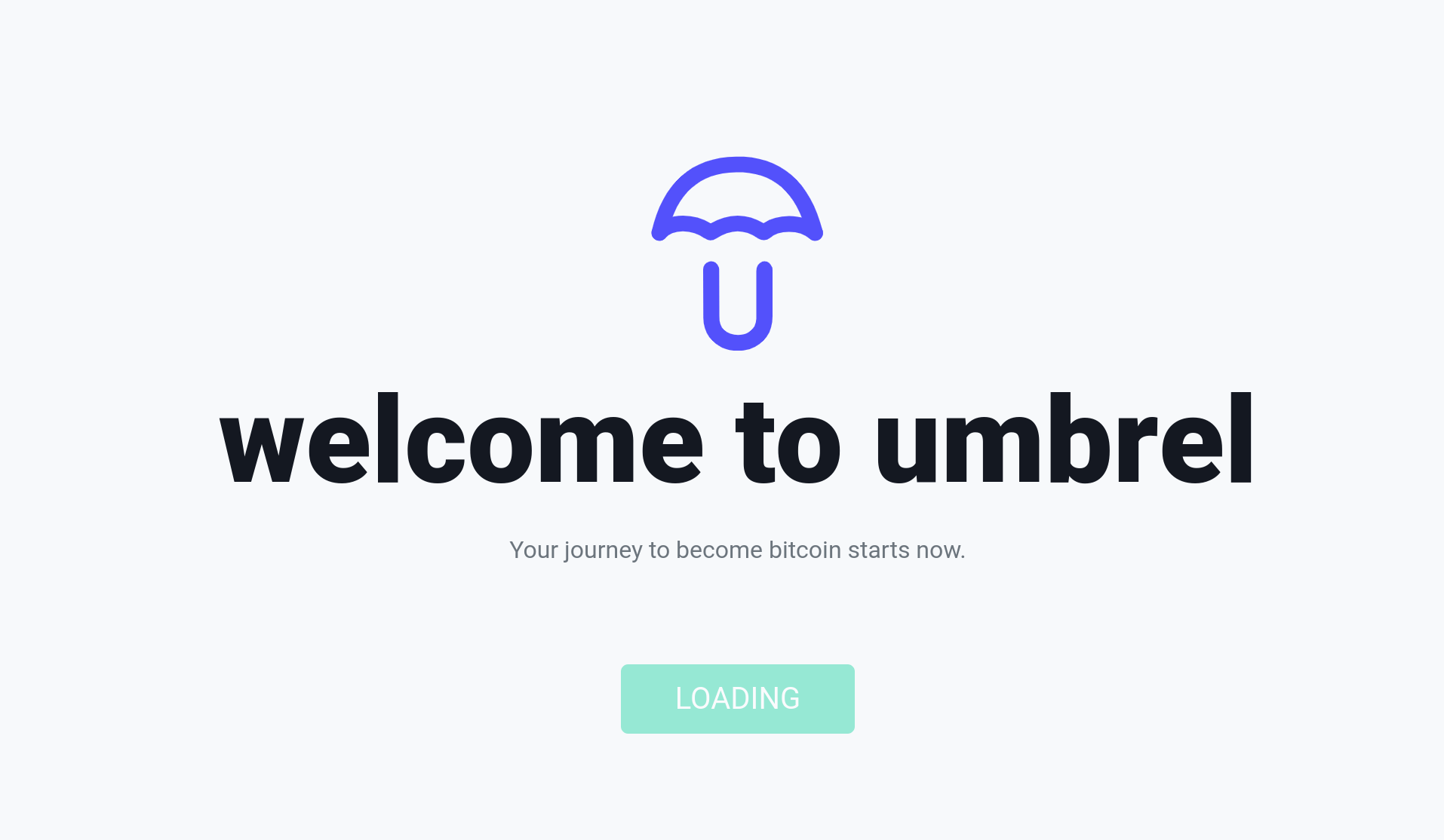
Note: If after entering http://umbrel.local/ the interface above never opens, please download and use Angry IP, find the IP address of the installed Umbrel, and enter that address directly in the browser (for example, http://192.168.69.420).
Note: Following the prompts on the Umbrel interface, once you have completed the key backup, the node will begin to synchronize. If you need to configure the Lightning Network, or the Mempool blockchain explorer, you will need to wait for the node to finish syncing, which takes about one week.
Note: If you are in mainland China and, after correctly following the steps above, the device still cannot begin node synchronization, it may be a network blocking issue; in that case, you may need to set up your router for circumventing the firewall.
💖 If you run into any problem while building your node and would like help, please contact me via Twitter || Douban ;